 Zinn® Chat
Business hours and SLA targets
Offer live chat only while you are open, tell visitors when you are back, and track reply and resolution targets.
Set the hours once; the chat and the SLA targets both follow them.
This guide is about Zinn® Chat Pro. Every Pro plan starts with a free trial.
Set your hours
In Settings, Hours and SLAs, tick Use business hours, set the time zone and each day's hours (for example 09:00-17:00, or 09:00-12:30, 13:30-17:00), and list the dates you are closed.
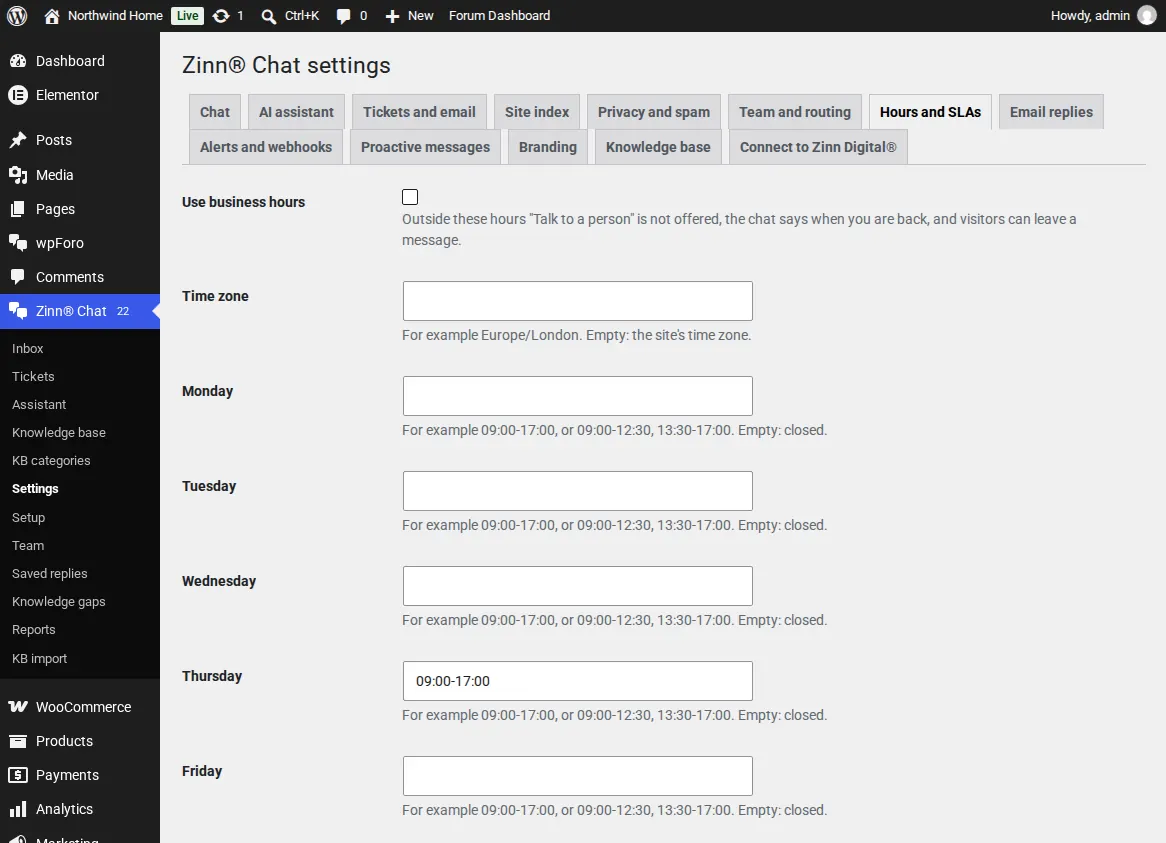
What visitors see
Outside your hours Talk to a person is not offered, and the chat says when you are back and offers to take a message.
Set SLA targets
Tick Track response and resolution targets and set, for each priority, the hours to the first reply and to solving it. Count only business hours if you like. The AI can set the priority of new tickets from their urgency.
Follow them
Each ticket shows how long is left or how late it is. A missed target alerts the team once, by email, Slack, Teams, Telegram, push or webhook.
Targets are checked every five minutes in the background, and each missed target is alerted only once.
Related guides
- Start Zinn® Chat Pro
- Add support agents, departments and the phone app
- Saved replies, suggested replies and summaries
- Let customers reply to tickets by email
- Slack, Teams, Telegram, push and webhooks
- AI persona, hand-off rules, triage and extra sources
- Find and fill knowledge gaps
- Build a knowledge base in WordPress
- Import an existing knowledge base
- Proactive chat messages
- Help desk reports and customer ratings
- White-label the help desk
- Zinn® Chat shortcodes: every shortcode and attribute
Included with Zinn Digital® hosting
Already installed on every WordPress site we host
The free Zinn® Chat plugin comes installed and activated on every WordPress site we host on our own servers, so a chat is one switch away. Premium is an upgrade, per site, when you need more.