 Zinn® Chat
Answer live chats in WordPress
How visitors reach a person, how to answer several chats at once, and how to work from a phone.
Talk to a person is offered to visitors only while someone has the inbox open and is not set to away.
Open the inbox
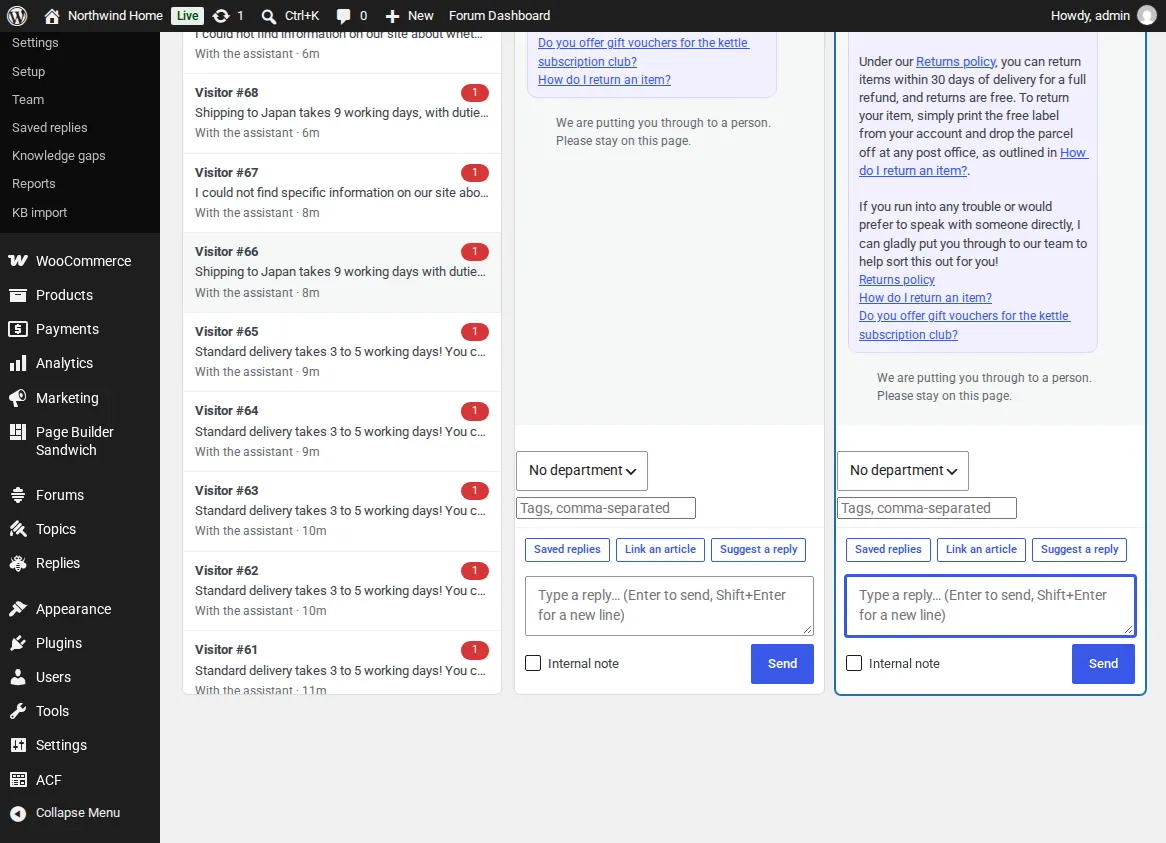
Open Zinn® Chat, Inbox. Visitors waiting for a person come first, with how long they have waited. Desktop alerts and a sound tell you when someone new is waiting.
Take a chat
Open a chat and press Take this chat, or just reply. The assistant steps back. Each open chat is a tab that keeps its own draft, and on a wide screen up to three sit side by side. Alt and a number switches between them.
Hand it back, end it or make it a ticket
Back to the assistant returns the visitor to the AI. Make a ticket turns the chat into a ticket answered by email. End chat closes it. Tick Internal note to write something only the team sees.
Answer from a phone
On a phone or tablet the inbox shows the list, then one chat full screen with a back button. Focus mode hides the rest of wp-admin on any screen.
When nobody takes a waiting chat within the time set in Settings, Tickets and email, the team is emailed.
Related guides
- Install Zinn® Chat on WordPress and switch it on
- Set up the AI assistant and teach it your site
- Support tickets, the support page and ticket emails
- WooCommerce: the Support tab and order questions
- Chat and support elements for blocks and page builders
- Privacy, consent and spam protection
- Zinn® Chat shortcodes: every shortcode and attribute
Included with Zinn Digital® hosting
Already installed on every WordPress site we host
The free Zinn® Chat plugin comes installed and activated on every WordPress site we host on our own servers, so a chat is one switch away. Premium is an upgrade, per site, when you need more.