 Zinn® Chat
Add live chat to any website
How to add Zinn® Chat to any website with one line of code: turn the chat on, list your web addresses and paste the snippet.
This works for any website — hand-built, a site builder that lets you add code, or a CMS other than WordPress.
Open Live chat
Sign in to your Zinn Digital® dashboard and open Live chat, then the Settings tab.
Add your web addresses
Under “Web addresses this chat runs on”, add each address the chat will appear on, such as https://www.example.com. The chat refuses to run anywhere else.
Turn it on
Tick “Show the chat on my site” and save.
Paste the snippet
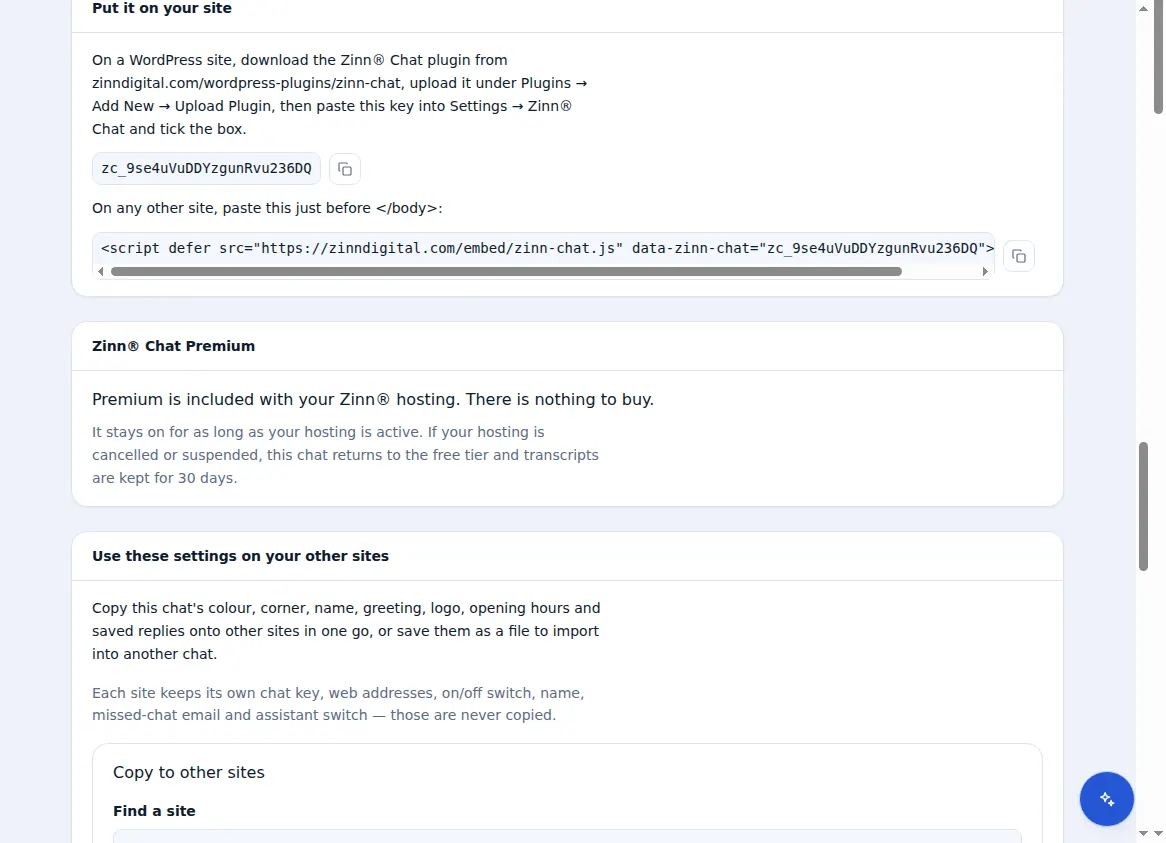
Under “Put it on your site”, copy the script line and paste it just before the closing body tag on every page, or into your site's footer code.
Check it
Open your site in a new window. The chat button appears in the corner once the page has finished loading. Send a message and it arrives in your inbox.
If the button does not appear, check that the exact address in your browser — including www and https — is on the list.
Included with Zinn Digital® hosting
Already installed on every WordPress site we host
The free Zinn® Chat plugin comes installed and activated on every WordPress site we host on our own servers, so a chat is one switch away. Premium is an upgrade, per site, when you need more.