 Zinn® Chat
Support tickets, the support page and ticket emails
Create the support page, answer tickets in wp-admin, and how customers follow their request.
Tickets come from the support page, from the chat and from the WooCommerce account area, and are answered in wp-admin.
Create the support page
The Setup checklist creates a Support page with the [zinn_chat_support] shortcode. Add it to your menu from Appearance, Menus, where Zinn® Chat has its own menu items. The form works without JavaScript.
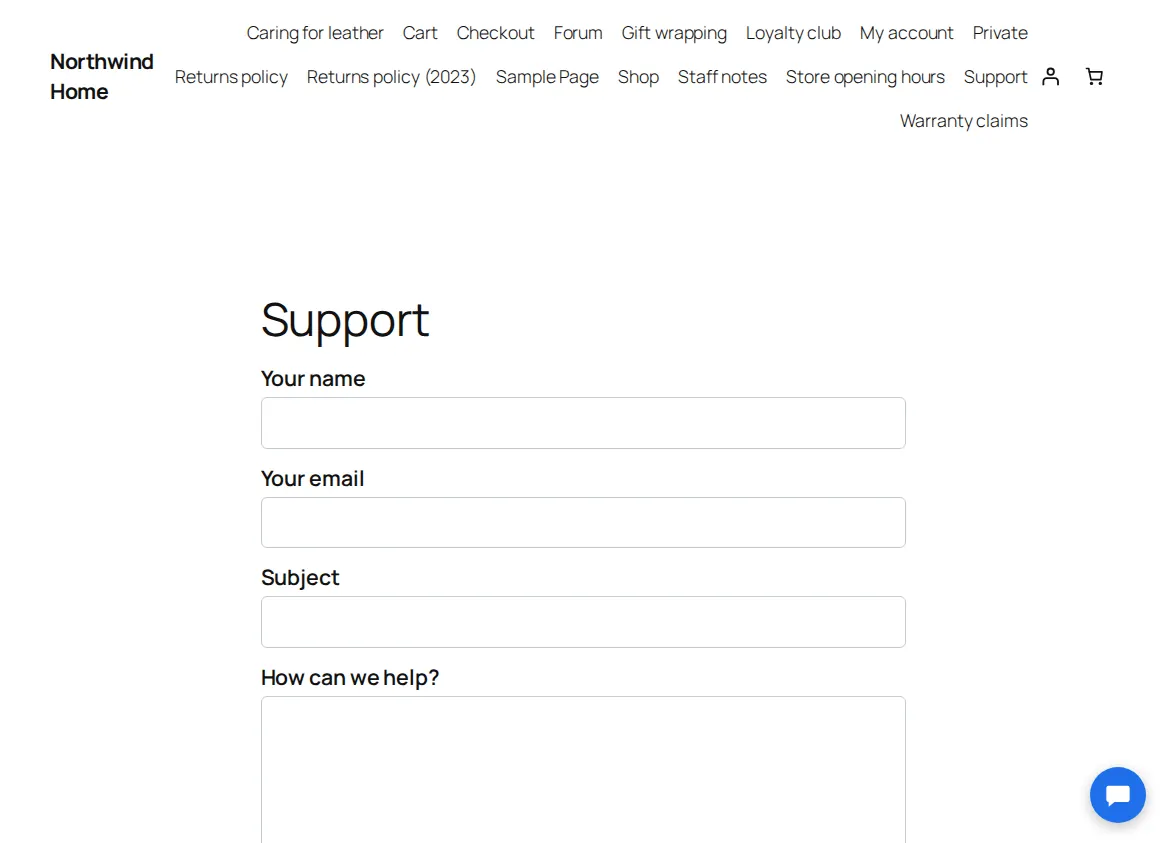
What the customer gets
An email confirming the request, with a private link to follow it. Signed-in customers see all their requests on the support page and in their account.
Answer in wp-admin
Open Zinn® Chat, Tickets. Filter by status, search by subject, email or number, and open a ticket to reply. Choose what happens after your reply: waiting for the customer, solved or kept open. Set the priority and who it is assigned to on the right.
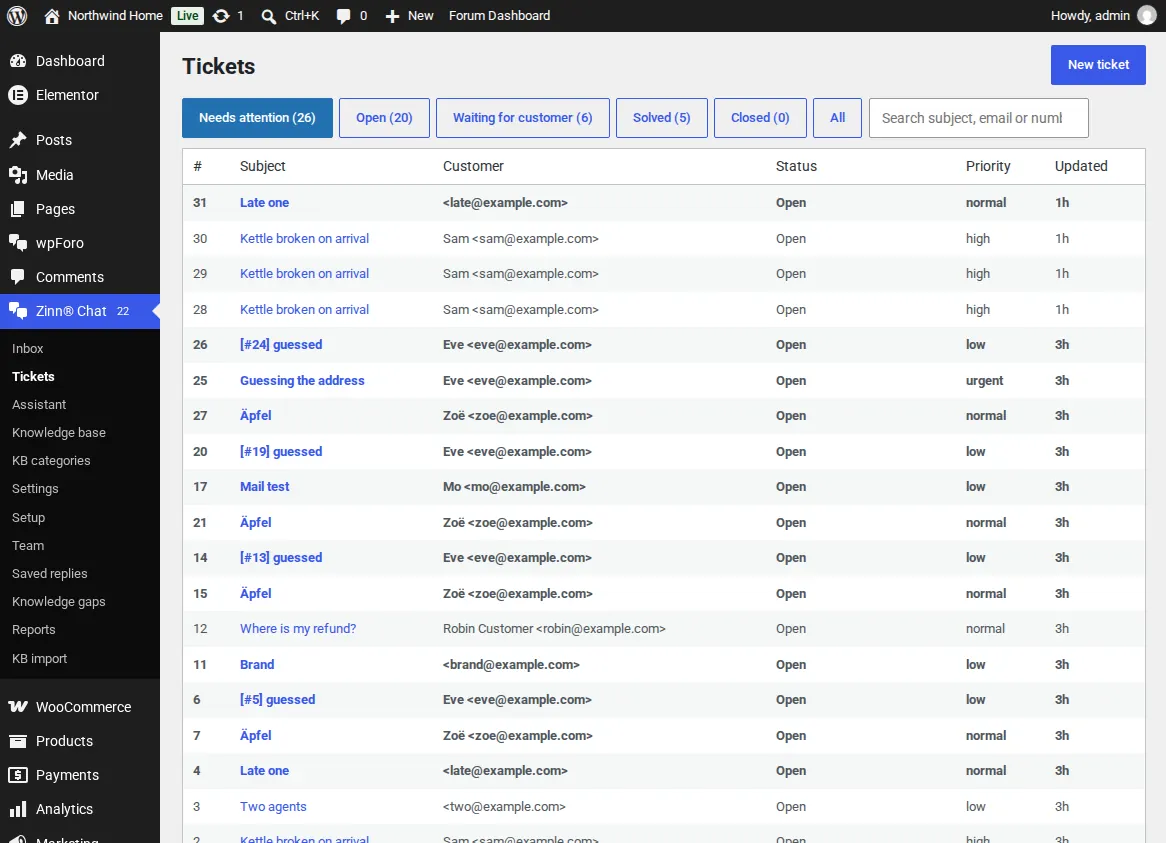
Replies both ways
Your reply is emailed to the customer with the private link. When they reply, the ticket opens again and you are emailed.
Links that do not expire on the customer
A private link works for the number of days set in Settings, Tickets and email after the last message. After that the page offers to email a fresh link to the address on the ticket.
Emails go through your site's own mail setup, so an SMTP plugin you already use sends them.
Related guides
- Install Zinn® Chat on WordPress and switch it on
- Set up the AI assistant and teach it your site
- Answer live chats in WordPress
- WooCommerce: the Support tab and order questions
- Chat and support elements for blocks and page builders
- Privacy, consent and spam protection
- Zinn® Chat shortcodes: every shortcode and attribute
Included with Zinn Digital® hosting
Already installed on every WordPress site we host
The free Zinn® Chat plugin comes installed and activated on every WordPress site we host on our own servers, so a chat is one switch away. Premium is an upgrade, per site, when you need more.