 Zinn® Chat
Add support agents, departments and the phone app
Invite colleagues who can answer chats and tickets without reaching the rest of wp-admin, route tickets by department, and install the agent app.
A Support agent account answers customers and uses saved replies. Every other part of wp-admin sends it back to the inbox.
This guide is about Zinn® Chat Pro. Every Pro plan starts with a free trial.
Invite an agent
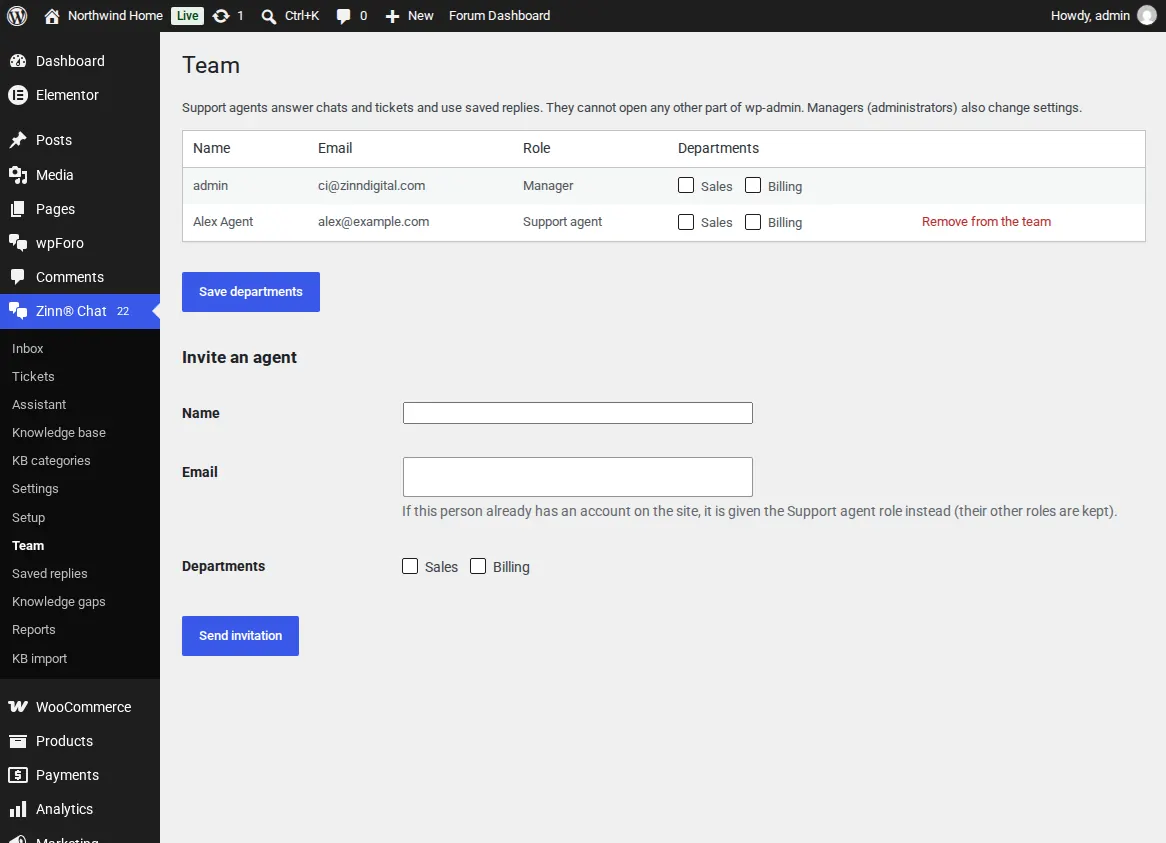
Open Zinn® Chat, Team, enter a name and email and choose Send invitation. They get WordPress's set-your-password email and land in the inbox when they sign in. An existing account gets the agent role added.
Departments
List your departments in Settings, Team and routing, then tick each agent's departments on the Team screen. Customers can choose a department on the ticket form, and the AI can pick one for them.
Assign new tickets
Choose in turn (round robin) or to the agent with the fewest open tickets. Only agents in a ticket's department are chosen.
Install the agent app
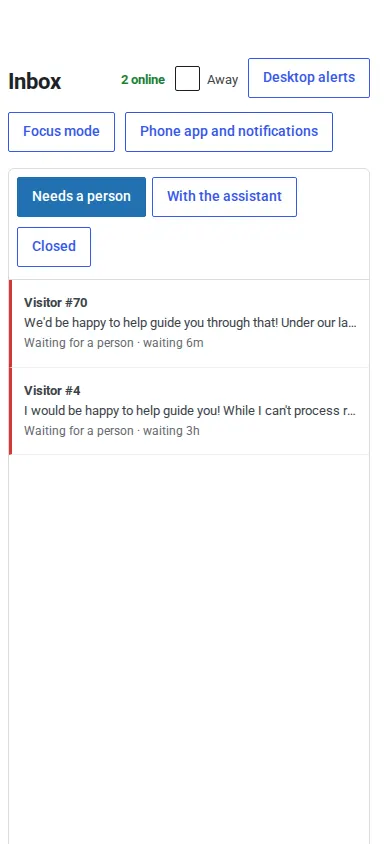
Open the inbox on a phone: in Chrome or Edge choose Install, on an iPhone choose Share and Add to Home Screen. It opens full screen in a layout made for a phone. Use Phone app and notifications to turn on notifications on each device.
See who else is on a ticket
When two people open the same chat or ticket, each sees the other, and a warning shows when the other is writing a reply.
Agents cannot change settings, see reports or delete tickets: that stays with administrators.
Related guides
- Start Zinn® Chat Pro
- Saved replies, suggested replies and summaries
- Business hours and SLA targets
- Let customers reply to tickets by email
- Slack, Teams, Telegram, push and webhooks
- AI persona, hand-off rules, triage and extra sources
- Find and fill knowledge gaps
- Build a knowledge base in WordPress
- Import an existing knowledge base
- Proactive chat messages
- Help desk reports and customer ratings
- White-label the help desk
- Zinn® Chat shortcodes: every shortcode and attribute
Included with Zinn Digital® hosting
Already installed on every WordPress site we host
The free Zinn® Chat plugin comes installed and activated on every WordPress site we host on our own servers, so a chat is one switch away. Premium is an upgrade, per site, when you need more.