 Zinn® Chat
Let customers reply to tickets by email
Connect a mailbox or an email service so that replies to ticket emails land on the ticket.
Every ticket email is sent with your support address as its reply address and a reference only your site can make.
This guide is about Zinn® Chat Pro. Every Pro plan starts with a free trial.
Choose a support address
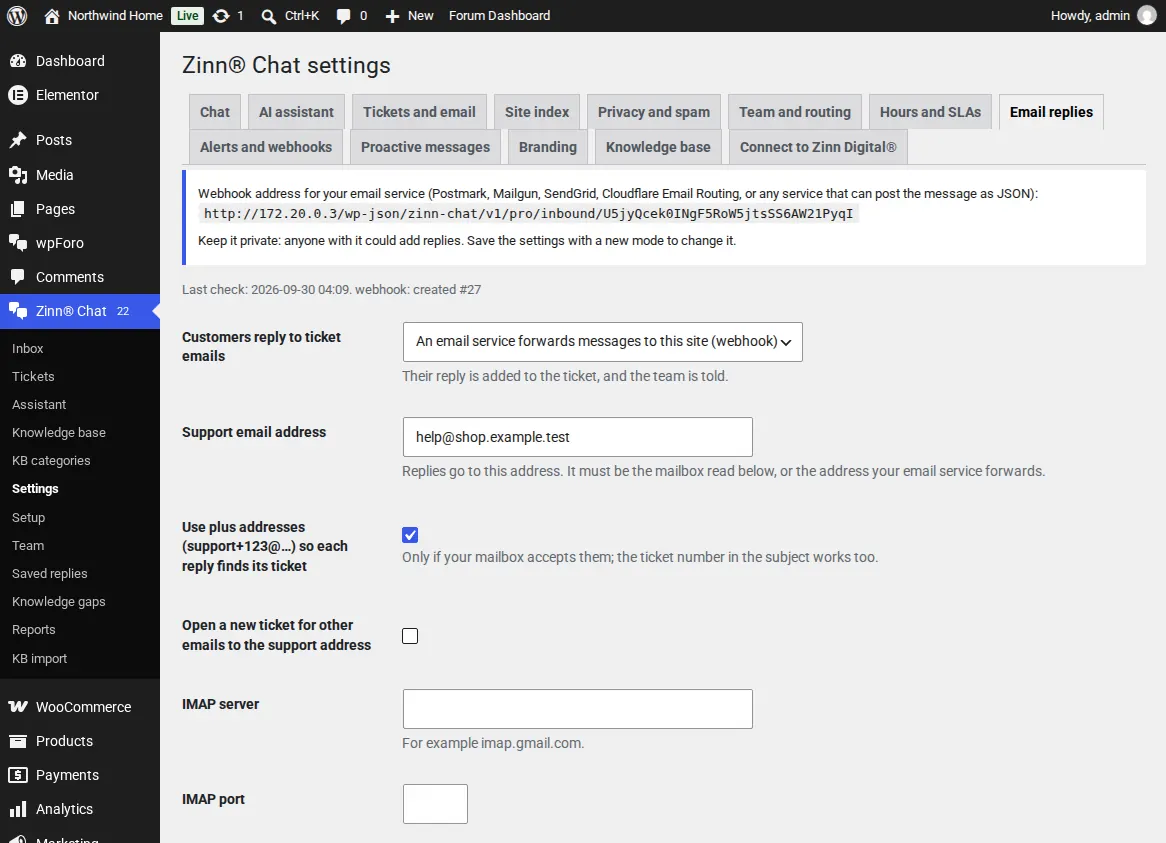
In Settings, Email replies, enter the address customers should reply to. With plus addressing, each ticket gets its own address such as support+123@.
Read a mailbox, or receive a webhook
Read a mailbox: enter the IMAP server, port, user name and an app password, and the site checks it every two minutes. Webhook: point Postmark, Mailgun, SendGrid, Cloudflare Email Routing or any service that posts email as JSON to the address shown on the screen.
Who can reply
A reply from the customer on the ticket is added to it and reopens it. An agent replying to a team alert answers the customer. An email from anyone else is kept as an internal note and never reaches the customer.
Everything else
Auto-replies, mailing lists and messages already received are ignored. New emails to the support address can open new tickets.
Only the new part of a reply is kept: the quoted message underneath is removed.
Related guides
- Start Zinn® Chat Pro
- Add support agents, departments and the phone app
- Saved replies, suggested replies and summaries
- Business hours and SLA targets
- Slack, Teams, Telegram, push and webhooks
- AI persona, hand-off rules, triage and extra sources
- Find and fill knowledge gaps
- Build a knowledge base in WordPress
- Import an existing knowledge base
- Proactive chat messages
- Help desk reports and customer ratings
- White-label the help desk
- Zinn® Chat shortcodes: every shortcode and attribute
Included with Zinn Digital® hosting
Already installed on every WordPress site we host
The free Zinn® Chat plugin comes installed and activated on every WordPress site we host on our own servers, so a chat is one switch away. Premium is an upgrade, per site, when you need more.